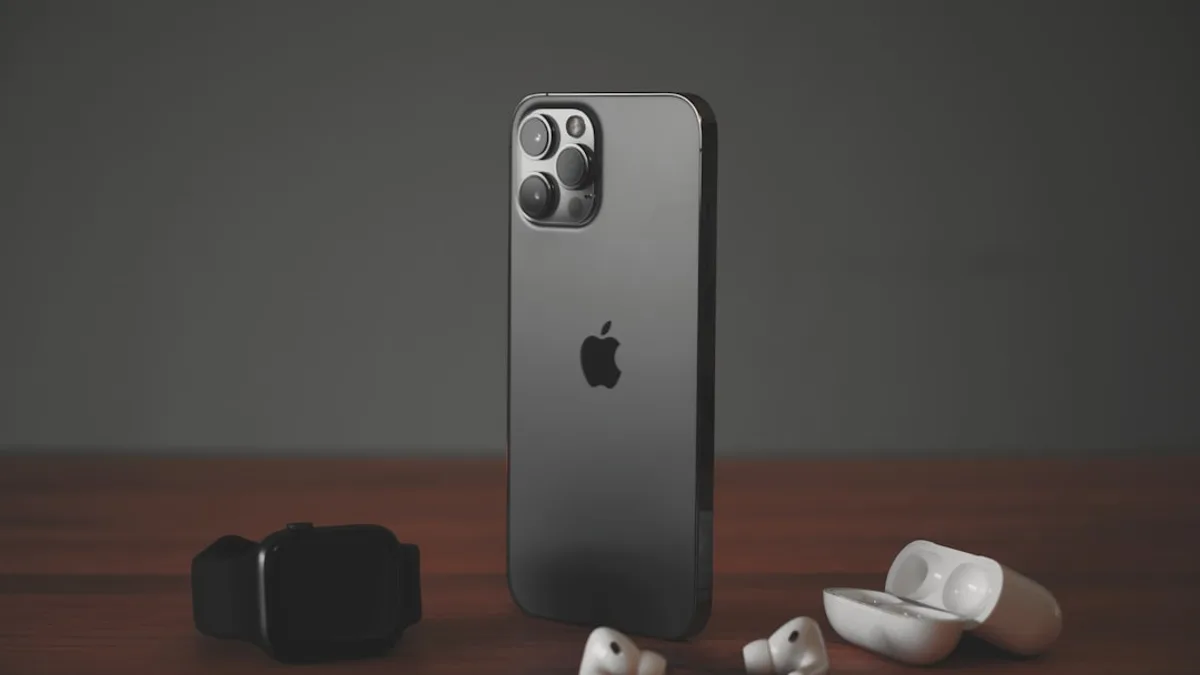
You can now trigger your iPhone’s Camera app from supported AirPods without touching the phone — useful for group shots, tripod videos, selfies from a distance, or any setup where tapping the screen would shake the frame.
The feature is new in iOS 26 and is called Camera Remote, according to 9to5Mac . It appears in AirPods-related settings and lets AirPods act as a hands-free control for the iPhone camera, though exact options can depend on what iOS shows for your connected model.
Use AirPods Camera Remote to shoot hands-free iPhone photos and videos
Camera Remote turns AirPods into a physical camera trigger for the iPhone Camera app. Once available for your setup, you can use the AirPods control assigned in iOS to trigger camera actions while the Camera app is open.
That gives you a cleaner option than sprinting back from the phone after hitting the timer. It also reduces the risk of nudging the iPhone at the exact moment you shoot.
Good use cases:
- Group photos: Frame the shot, join the group, then use your AirPods.
- Tripod video: Control a take without walking back to the phone.
- Selfies from distance: Use the rear camera if you want better framing.
- Short-form recording: Start a setup without touching the screen.
- Low-shake shots: Avoid tapping the iPhone while it sits on a stand.
This is not a separate Camera app. It is a new control layer tied to iOS 26 and AirPods settings.
Before you start: confirm iOS 26 and supported AirPods
You need two things before Camera Remote will work: an iPhone running iOS 26 and an AirPods model that shows the Camera Remote option in iOS.
The safest way to confirm support is to connect your AirPods to the iPhone and check whether the Camera Remote setting appears. If it does not appear, do not assume your setup is broken. Your AirPods model, software version, or current iOS build may simply not expose the feature.
Before troubleshooting too deeply, check the basics:
| What to check | Why it matters |
|---|---|
| iOS version | Camera Remote is an iOS 26 feature. |
| Connected AirPods | The setting is tied to AirPods settings for the pair you are using. |
| Camera Remote setting | If iOS does not show it, the feature may not be available for that setup. |
| Camera app | The control is meant to work with the iPhone Camera app open. |
The available AirPods lineup varies by generation, and not every older model should be assumed to support every new iOS 26 feature. Keep troubleshooting grounded: check iOS 26, check the connected AirPods, then check whether iOS shows Camera Remote.
1. Connect the AirPods you want to use with Camera Remote
Start by making sure your AirPods are connected to the same iPhone whose camera you want to control.
The source says Camera Remote is found through AirPods settings and works with the iPhone’s Camera app. That means you should set it up from the iPhone you plan to use for the shot, not from another Apple device nearby.
Action steps:
- Put on or connect the AirPods you want to use.
- Open the iPhone you want to use as the camera.
- Go to Settings and look for the settings page for your connected AirPods.
- Confirm you are configuring the AirPods you actually plan to use for the shot.
Watch out: the source does not spell out multi-device behavior, so do not build your shoot around assumptions about automatic switching. For the cleanest test, use one iPhone, one connected pair of AirPods, and the Camera app on that iPhone.
2. Find Camera Remote inside AirPods settings on iOS 26
Open the Settings app on your iPhone and go to the settings area for your connected AirPods. In iOS 26, look for Camera Remote or a camera-related control connected to AirPods.
That is where you should be able to manage this feature if it is available for your model and software version. The exact label or placement may vary by iOS build, so treat the on-screen wording as the final guide.
A careful setup flow is:
- Open Settings.
- Open the page for your connected AirPods.
- Look for Camera Remote or a camera-related AirPods control.
- Open that option if it appears.
If you cannot find Camera Remote, check the confirmed gates first:
- iOS: The iPhone needs iOS 26.
- AirPods: The connected model needs to support the feature.
- Setting location: Look in AirPods-related settings, not inside the Camera app itself.
For readers tracking broader iPhone workflow changes, this sits in the same practical category as other iOS quality-of-life updates: small controls that remove friction from everyday tasks.
3. Turn on Camera Remote and choose the AirPods gesture
If Camera Remote is not already active, enable it from the AirPods settings page where it appears.
Depending on the options shown in iOS, you may be able to choose how AirPods trigger camera control. The exact choices should be taken from the menu on your iPhone, because the source material does not provide a fully documented settings screen.
A simple way to think about it:
| Setting shown in iOS | What to do |
|---|---|
| Camera Remote toggle or option | Turn it on if needed. |
| Gesture choice | Pick the control that feels least likely to be triggered accidentally. |
| No Camera Remote option | Recheck iOS 26 and whether your AirPods support the feature. |
In plain terms: when the Camera app is active, iOS can use an AirPods control for camera-related action. Pick the option that best fits the way you plan to shoot.
Practical choice:
- Choose the fastest available control if you want a shutter-style experience.
- Choose a more deliberate control if you are worried about accidental triggers.
- If iOS offers only one option, use that and test it before an important shot.
4. Frame the shot in the iPhone Camera app before pressing AirPods
Camera Remote only helps after the shot is ready. Open the iPhone Camera app, choose the mode you plan to use, and frame the scene before using your AirPods.
The safest workflow is:
- Open Camera.
- Choose the camera mode you want.
- Position the iPhone.
- Check framing on screen.
- Use the AirPods control shown in iOS.
For hands-free shooting, put the iPhone on something stable: a tripod, stand, MagSafe mount, or flat surface. That is where this feature is most useful. The less you touch the phone, the less you risk moving the frame.
Watch out: Camera Remote is not a framing tool. It triggers the camera action. You still need to aim the iPhone, choose the camera view, and confirm the shot before stepping away.
5. Press your AirPods control to take a photo or start recording
Once Camera Remote is enabled and the Camera app is open, use the AirPods gesture or control you selected in iOS.
The result should follow the camera action available in the current Camera app context. Because the source material does not provide a full mode-by-mode breakdown, do a short test before relying on it for anything important.
A good test takes less than a minute:
- Open Camera.
- Frame anything nearby.
- Use the selected AirPods control.
- Check what happened in the Camera app.
- Repeat once in the mode you actually plan to use.
If your chosen control is quick to trigger, avoid rapid repeat presses until you know how the Camera app responds. If your chosen control requires a longer action, use it deliberately rather than brushing the AirPods while adjusting their fit.
This is the small but meaningful advantage over the built-in timer: you decide the moment. No countdown. No rushing into frame. No tapping the phone and hoping it stays still.
6. Fix Camera Remote if your AirPods do not trigger the iPhone camera
If using the AirPods control does nothing, keep the diagnosis simple. The verified source gives a narrow feature description, so the fix should start with the confirmed requirements.
Check these in order:
- Camera app: Make sure the iPhone’s Camera app is open.
- Camera Remote: Return to AirPods settings and confirm Camera Remote appears and is enabled.
- Gesture choice: Confirm which AirPods control iOS assigned for the feature.
- AirPods model: Check that your connected AirPods actually show support for Camera Remote.
- iOS version: Confirm the iPhone is running iOS 26.
Watch out for false assumptions. The source does not provide instructions about resetting AirPods, forcing firmware updates, or changing Bluetooth routing. Try the confirmed checks first. If the setting still does not appear on an iPhone running iOS 26, the next practical step is to look for Apple’s own support guidance or later iOS 26 release notes.
Quick recap: the fastest way to use AirPods as an iPhone camera remote
Update to iOS 26, connect your AirPods, open their settings, look for Camera Remote, enable it if available, and choose the control iOS offers. Then open the Camera app, frame the shot, and use the selected AirPods control.
The smart move is to test the gesture once before a group photo or important video take. Camera Remote gives you the trigger. You still control the setup.
Key Takeaways
- AirPods can now act as a hands-free shutter for the iPhone Camera app in iOS 26.
- The feature helps reduce camera shake and makes group photos, tripod videos, and distant selfies easier.
- Users should confirm compatibility by checking whether Camera Remote appears in their AirPods settings.